
00
Precheck
Make sure your Mac is ready.
ButterCut downloads itself using a tool engineers use to manage files and updates, Git. Let's see if your Mac already has Git installed. If not, let's instruct Claude to install it for you.
-
1
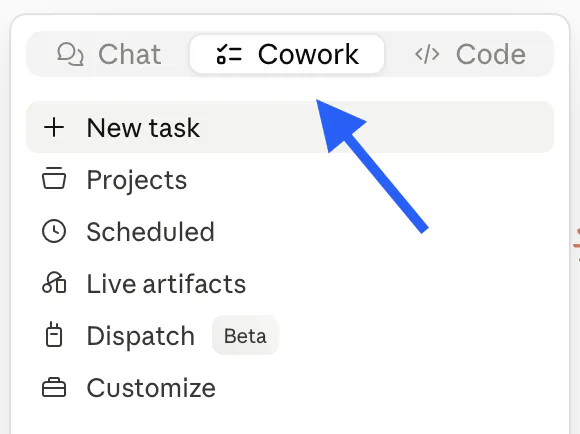
Open the Claude desktop app on your Mac and start a new chat in Claude Cowork.
-
2
Paste this in and send it:Paste into Claude
Check if Git is installed on my Mac. If it isn't, install it in the simplest way possible, using Apple Xcode. - 3 If it's already there, you're done — skip to Step 1. If it's missing, Claude walks you through a short, free install (it'll ask your Mac to add Apple's developer tools — just click Install when the little window pops up and wait for it to finish).

01
Install
Bring ButterCut onto your Mac.
-
1
In the same Claude Cowork chat, paste this and send it. Claude downloads ButterCut and tucks it into your home folder.Paste into Claude
Clone https://github.com/barefootford/buttercut into my home folder. -
2
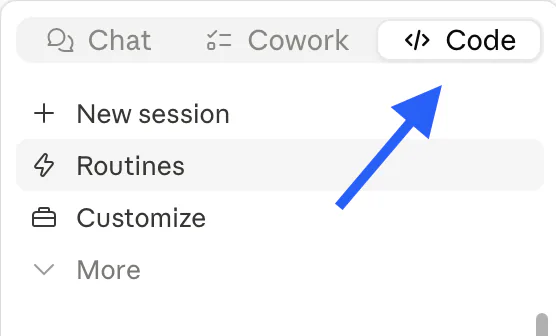
Open the Code tab inside Claude Desktop.
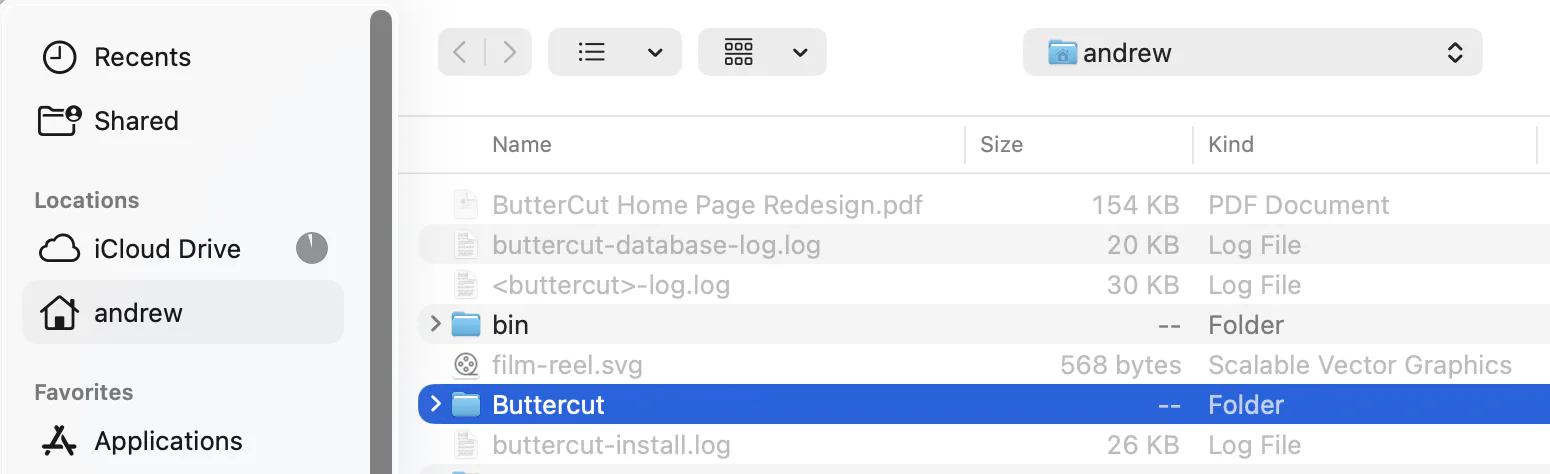
At the bottom, set the folder to ButterCut, switch Cloud to Local, and uncheck worktree.

-
3
Now paste this and send it. Claude installs everything ButterCut needs and gets it ready to edit.Paste into Claude
Set up ButterCut.


Run into a snag? The community is happy to help.